Language

Beau Is Afraid AI Video Effect

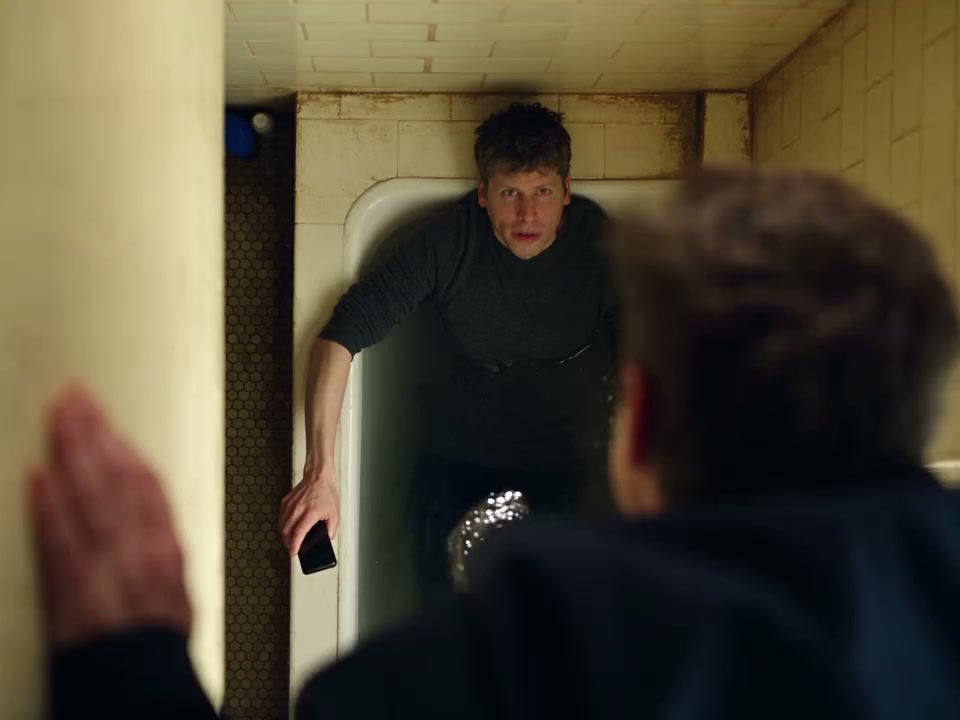
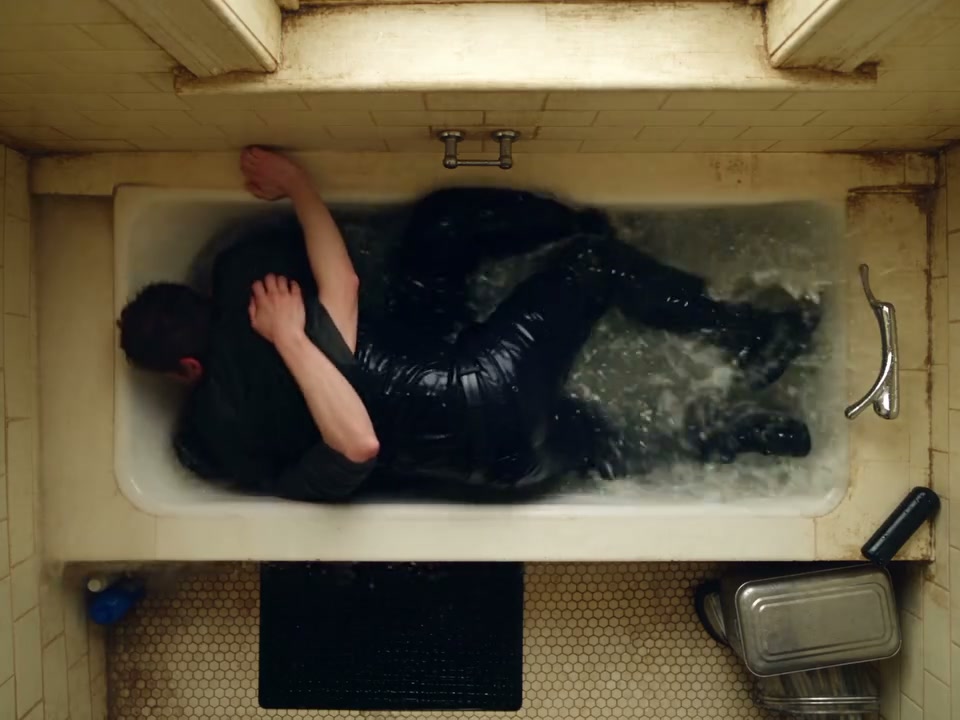
Turn two photos into the viral bathtub scene. Choose who is in the bath and who drops from above, then create your own version with both faces in the action.

Create

Photo 1 · Person in the bathtub
Photo 2 · Person above the bathtub

Generation result

Two photos, two clearly assigned roles

Put one person in the bathtub and the other above it. Each photo has its own role, so you decide who reacts and who comes crashing down.

Two photos, two clearly assigned roles

The bathtub scene, with your cast

The ceiling reveal, tense reaction shots and chaotic fall bring both people into the same surreal bathroom moment. Add your photos to make the scene your own.

Made for your next group chat

Cast yourself and a friend, try a different pairing or reverse the roles. Download your finished video and share your version of the Beau Is Afraid effect.

Made for your next group chat

How it works

01

Add the person in the bathtub

Upload a clear portrait to Photo 1. This person takes the role already sitting in the bath.

02

Add the person above the bathtub

Upload the second portrait to Photo 2. This person takes the role overhead. Check both slots to make sure the cast is in the right order.

03

Create your video

Sign in when prompted and start the generation. The scene is ready to use, with no prompt to write, reference video to upload or timeline to edit.

04

Download and share

Follow the progress in My creations. When your video is ready, open it, review both faces and download it to share with friends.

What is the Beau Is Afraid AI effect?

The Beau Is Afraid AI effect puts two people of your choice into the film's surreal bathtub scene. One person is already in the bath while the other braces above it. Reaction shots build the tension before the person overhead loses their grip and drops into the tub.

The appeal is the casting: familiar faces become part of an unexpected, chaotic movie moment. Use a photo of yourself and a friend, make a couple's version or let your group chat choose who plays each role. Both portraits belong to the same scene, making the interaction between the two people the center of the effect.

Choose who plays each role

Photo 1 is the person in the bathtub. This person is already in the bath and reacts to what is happening overhead.

Photo 2 is the person above the bathtub. This person clings above the bath and takes the falling role.

Upload one portrait to each slot. The photos can come from completely separate pictures; the two people do not need to be photographed together. To reverse the roles, switch the photos before starting a new generation. The labels beside the upload fields help you keep the order clear.

How do two photos become the scene?

The bathroom sequence is already set up for you. Your portraits provide the two faces, while the effect supplies the setting, movement and camera sequence. You can create your version without filming a performance, matching a body pose or learning a video editor.

Start by choosing your cast, add both photos and check the role labels. Then start the generation. Open My creations to follow the task and return to the finished video. Once it is ready, you can watch it and download a copy.

Which photos work best?

Choose a sharp portrait with one clearly visible face. Even lighting and a front-facing or slightly turned head make facial details easier to see. A simple selfie or a clear portrait photo is a useful starting point.

Avoid sunglasses, hands covering the face, deep shadows and strong filters. If a picture contains several people, crop it so only the intended person remains. A clear face is more useful than a large file in which the person is distant or blurry.

You do not need a bathroom background or matching clothes. The two portraits are used to cast the people, so pick photos in which their faces are easy to recognize.

Make your own version

Try yourself and a friend, two partners or another pair whose photos you have permission to use. Decide who should be in the bath and who should be overhead, then let the scene do the storytelling. Reversing the roles gives the same pairing a different comic setup.

You can use a different portrait for either role in a new generation. This makes it easy to try another pairing without preparing a new scene or editing a source video.

Find, download and share your video

My creations keeps your generation tasks together under the account you used to create them. Open a completed task to watch the video and download it.

Before sharing, check the cast and choose the version you want to send. Your finished Beau Is Afraid video is ready for a reaction post, a private message or your next group chat.

Choose how many videos to create

Pay once. Use your generations whenever you are ready.

1 generations

$9.90 / per generation
$9.90USD · One-time payment

5 generations

$8.98 / per generationSave ~9%
$44.90USD · One-time payment

Frequently asked questions

What is the Beau Is Afraid AI effect?

It is a two-person photo-to-video effect based on the surreal bathtub scene. Upload two portraits to put your chosen people into the roles in and above the bath.

What do I need to upload?

Two portrait photos, with one person in each photo. The scene is already included, so you do not need to upload a video.

Which photo becomes which character?

Photo 1 is the person in the bathtub. Photo 2 is the person above the bathtub who falls into it. Check the role labels before starting.

Can I reverse the two roles?

Yes. Swap the photos between Photo 1 and Photo 2 before starting a new generation.

Can the two portraits come from different photos?

Yes. Each person can be photographed separately. Their backgrounds, lighting and poses do not need to match.

Which photo formats can I use?

Use JPEG, PNG or WebP. The photo selector accepts original files up to 50 MB. Choose a clear portrait with a visible face.

Do I need to write a prompt or edit the scene?

No. Add both portraits, check who plays each role and start the generation. The effect handles the scene and action.

Can I use a selfie or a group photo?

A clear selfie works well. If you start with a group photo, crop it to one person before uploading so the intended face is clear.

How do I know when my video is ready?

Follow the task in My creations. Processing time varies, and the completed video will be available there when it is ready.

Where can I download my video?

Sign in to the account used for generation, open My creations and select the completed video to watch and download it.

How are generation attempts counted?

Each generation uses one attempt. If a task is confirmed as failed, its attempt is returned automatically. You can check your remaining attempts in your account.

What should I do if a face looks unclear?

Use a sharper, well-lit portrait with fewer filters and no obstruction over the face. Check that each person is in the intended photo slot before creating a new version.

Choose your cast. Create the scene.

Who is in the bathtub, and who comes crashing down? Add two portraits and make your own Beau Is Afraid video.

Create my video